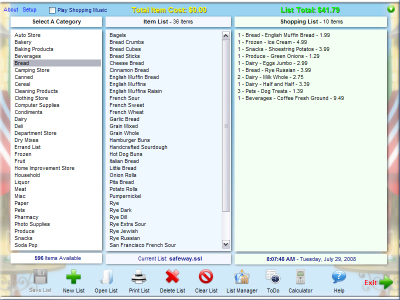
This is the screen where you create your
shopping list.
List categories are displayed in the left hand pane. Click a category to view
the items available. These items
are displayed in the Item List in the middle pane. To manage categories,
click the "List Manager
" icon at the bottom of the
page.
Selecting an item in the Item List will bring up the
following dialog:
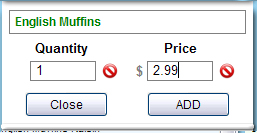
The name of
the item is displayed at the top. Enter the
quantity desired. You can also edit or enter a price for the item here without
having to go to the list manager. Click "ADD" to add the item to the shopping list,
or "Close" to exit without adding it. The price you entered will be saved
to the database automagically. You can also edit item prices in the List Manager
.
The right
hand pane contains the current shopping list. To edit, or delete an item, select
the item. The list displays the quantity desired,
the category, item name and the price for that item.
The total for
the last added item is displayed at the top of the
middle pane.
TOOLBAR
MENU

The toolbar menu at the bottom of the screen gives you
access to all of Speedo Shopper's features:
Save List: Saves the current
list.
New
List: Creates a new blank list.
Open
List: Opens a previously
saved list.
Print List: Print out the current list to take to the store with
you.
Delete List: Delete the current list.
Clear List:
Clears all the items in the current list.
List Manager:
Where you can add, edit, and delete grocery items and categories.
ToDo: Takes
you to the list and category manager.
Calculator: Opens the Windows
calculator.
Help: Takes you to this help
file.
Exit:
Close the program.
 Speedo Shopper