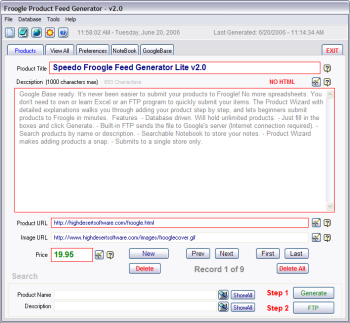
The navigation tabs near the top of the page will take
you to various other screens by clicking on them. Use the database navigation
buttons to browse through product records. For more info on navigation, click here
.
At the bottom of the screen, you can search for records containing search
terms in the item name or in the description. Click the "ShowAll" button next to
the Search button to show all records after a query.
Click on the Question Mark  symbols for Google suggested
help with data entry.
symbols for Google suggested
help with data entry.
Just 2 steps to submit your feed. Once all required data
has been filled in, click the "Generate" button. This will create a text file
formatted to Google's requirements. You do not need to click "Generate" after
each product added. Click "FTP" when you are ready to send the file to Google's
server.
(Hint
: Double check all your data
before generating the feed. This will save time, as Google will have to re-process
your feed if you make a mistake).
NOTE: Google will not accept carriage
returns, linefeeds, tabs or html in the description. Make this just a simple paragraph
describing your product. If you don't Google will reject it, and you
will have to re-submit the feed after waiting 24 hours. Google will automatically remove
any HTML tags.
 GoogleBase Product Feed Generator